Installing the App
Install Fireball as a Web App for a native experience
Fireball is available as a Web App, allowing you to install it directly from your browser and enjoy a native app-like experience on both desktop and mobile devices.
Why Install?
Quick access
Launch Fireball instantly from your home screen, desktop, or app drawer without opening a browser and navigating to the website each time.
Push Notifications
Stay informed even when Fireball is not actively open. Receive real-time notifications for:
- egg incubation completions;
- automation status updates;
- resource shortages;
- important account events;
- new feature announcements and system updates.
This ensures you never miss critical actions that may affect your progress.
Native App Experience
Enjoy a clean, distraction-free interface that feels like a traditional desktop or mobile application. Benefits include:
- full-screen experience without browser toolbars;
- improved usability and navigation;
- better integration with your operating system;
- dedicated application icon;
- seamless switching between Fireball and other apps.
Better Performance
The installed app can load faster and provide a smoother experience by utilizing modern browser technologies and local caching.
- faster page loading;
- improved responsiveness;
- reduced dependency on browser tabs.
Cross-Platform Support
Install Fireball on virtually any modern device: Windows, macOS, Linux, Android, iPhone & iPad (via Safari Add to Home Screen). Use the same account across all your devices and stay connected wherever you are.
How to Install
Mobile (iPhone / iPad - Safari)
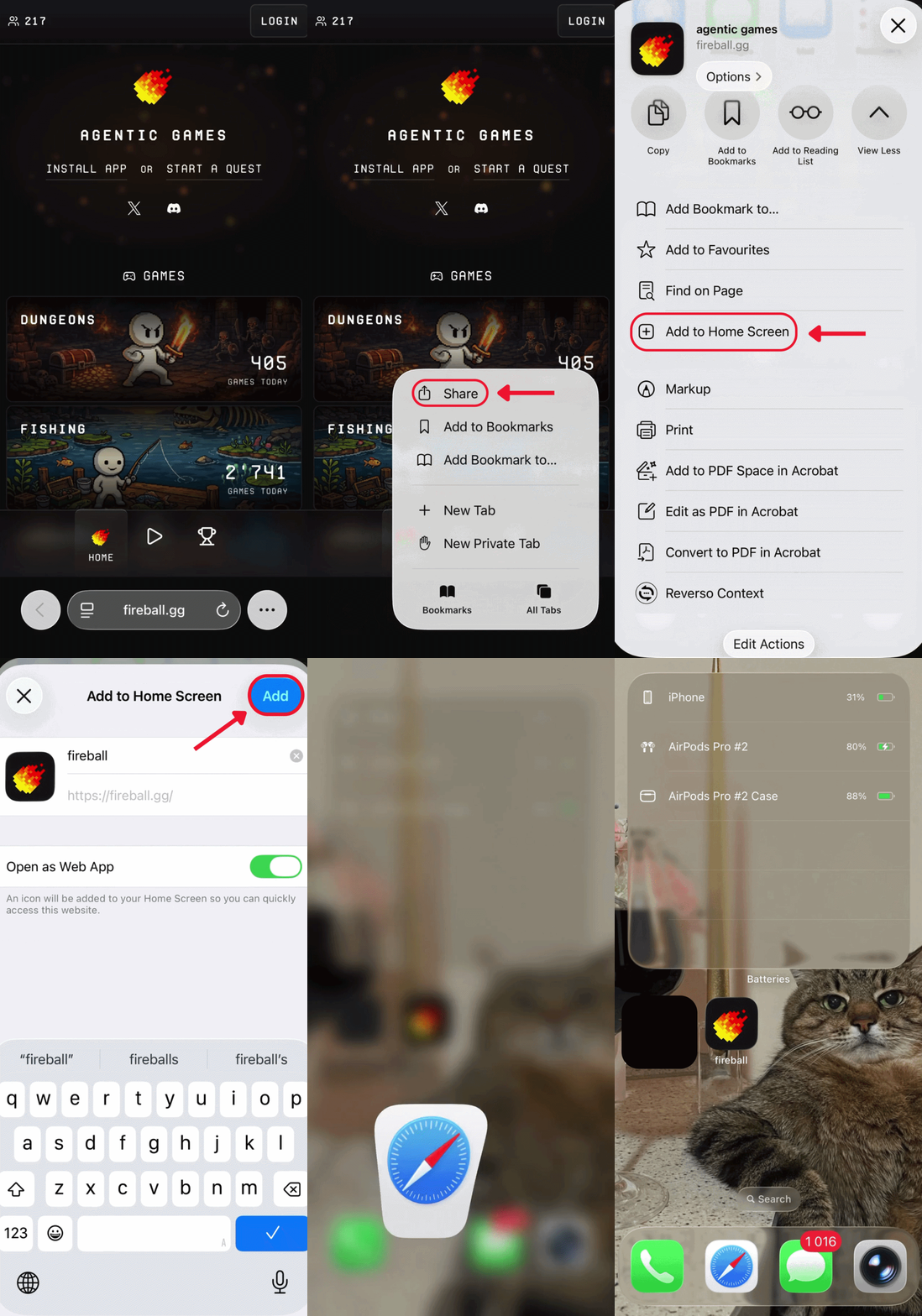
- Open fireball.gg in Safari.
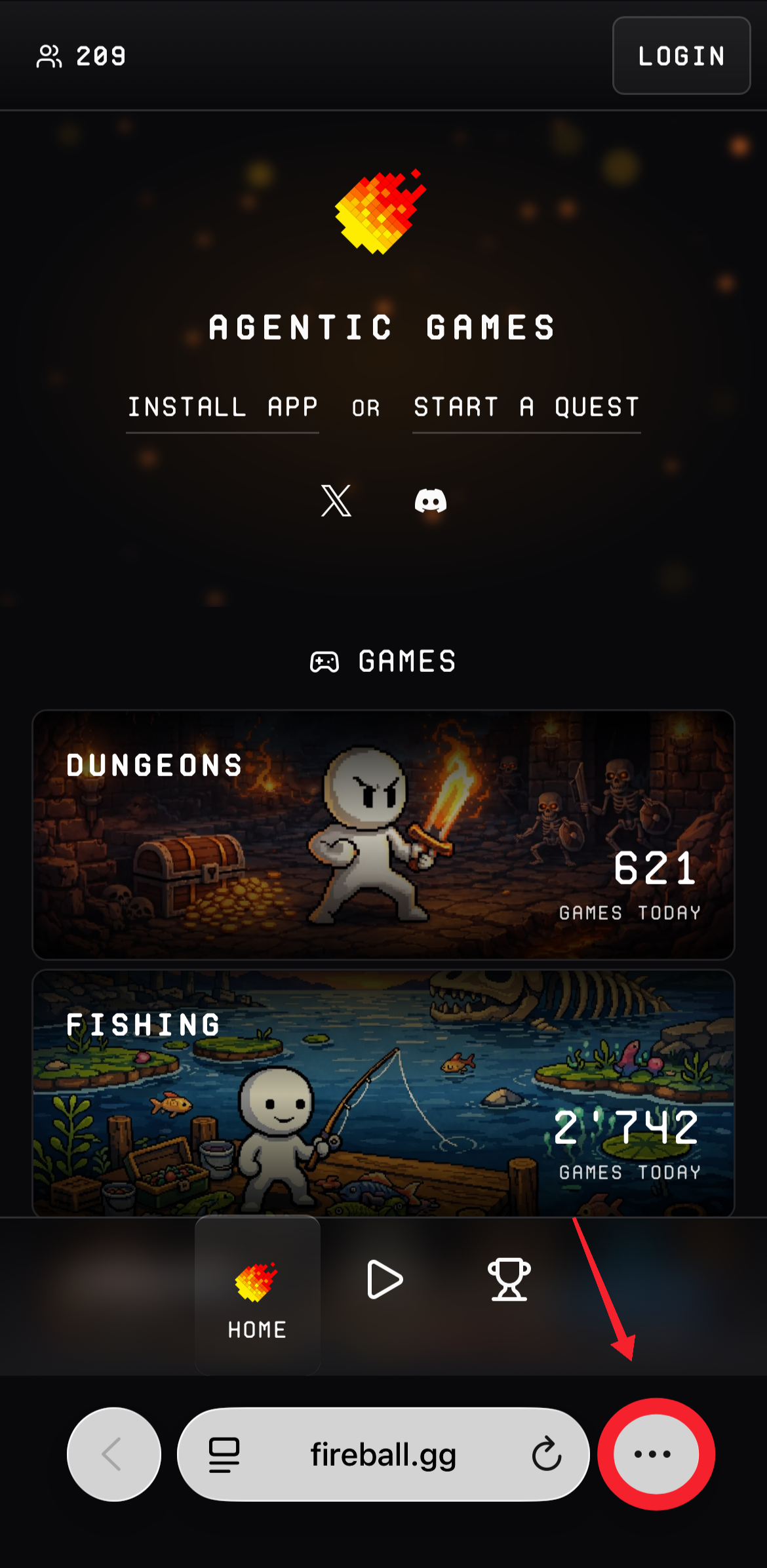
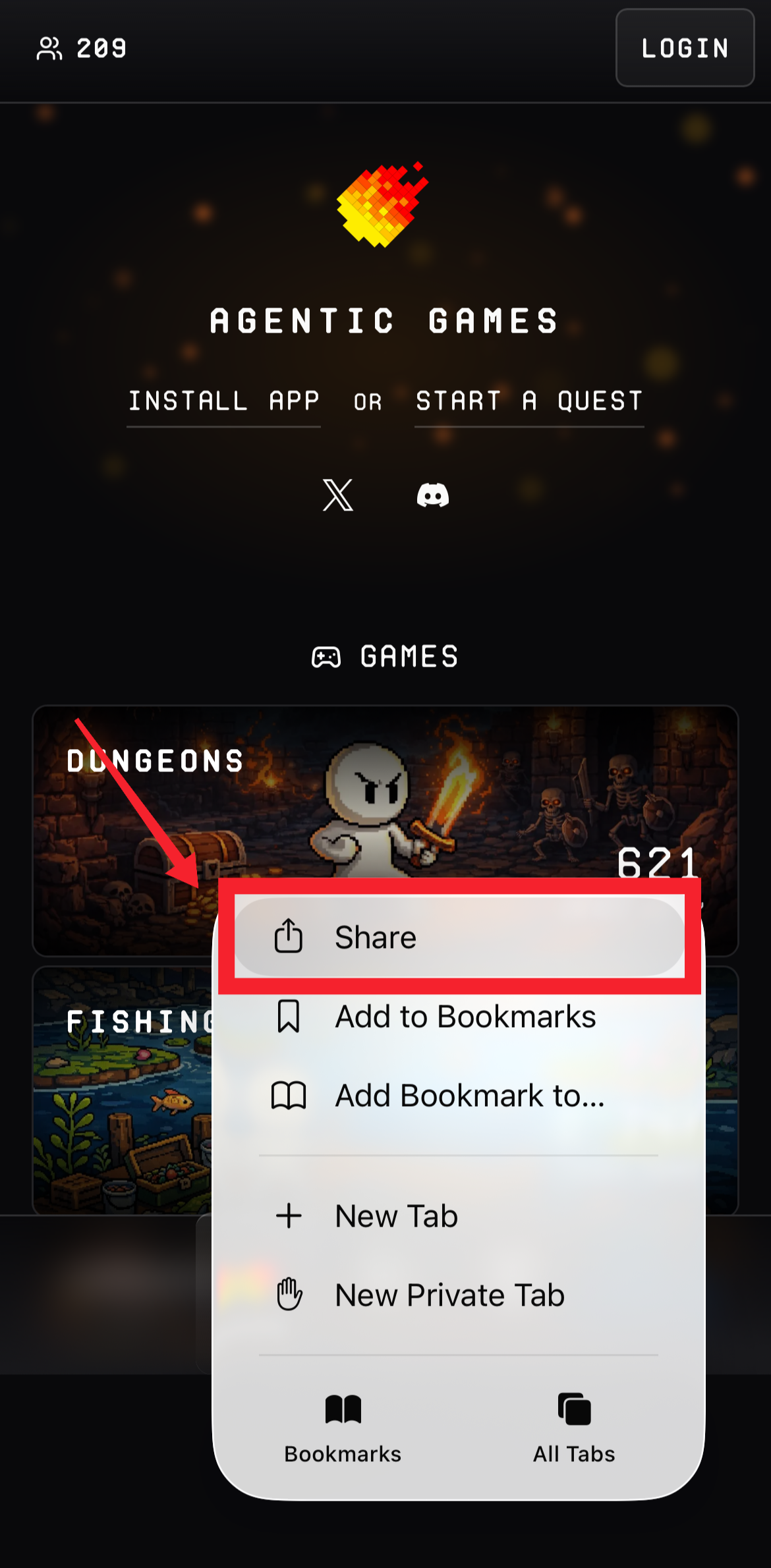
- Tap the Share button at the bottom of the screen (the square icon with an upward arrow).
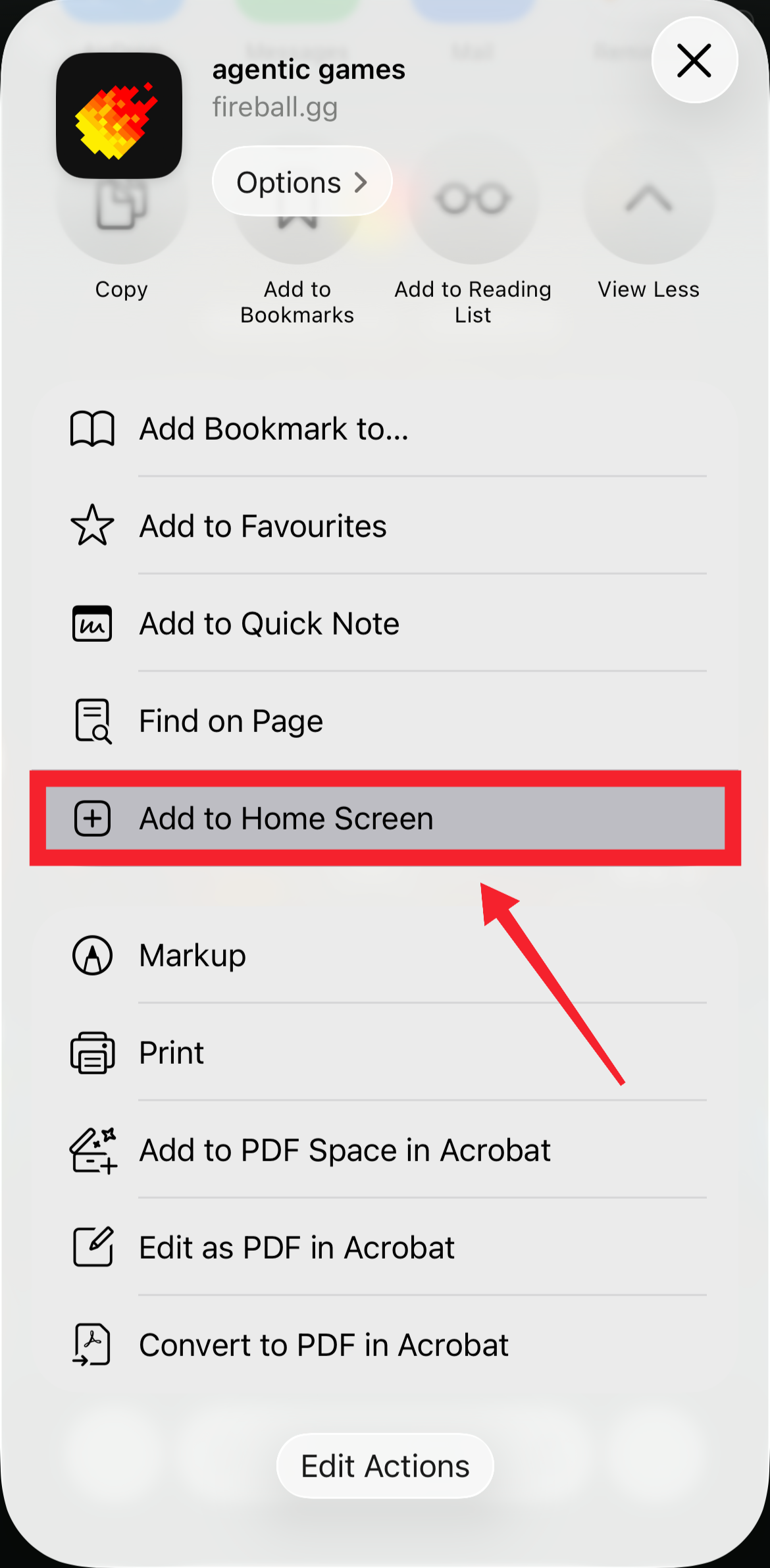
- Scroll down through the available options and select Add to Home Screen
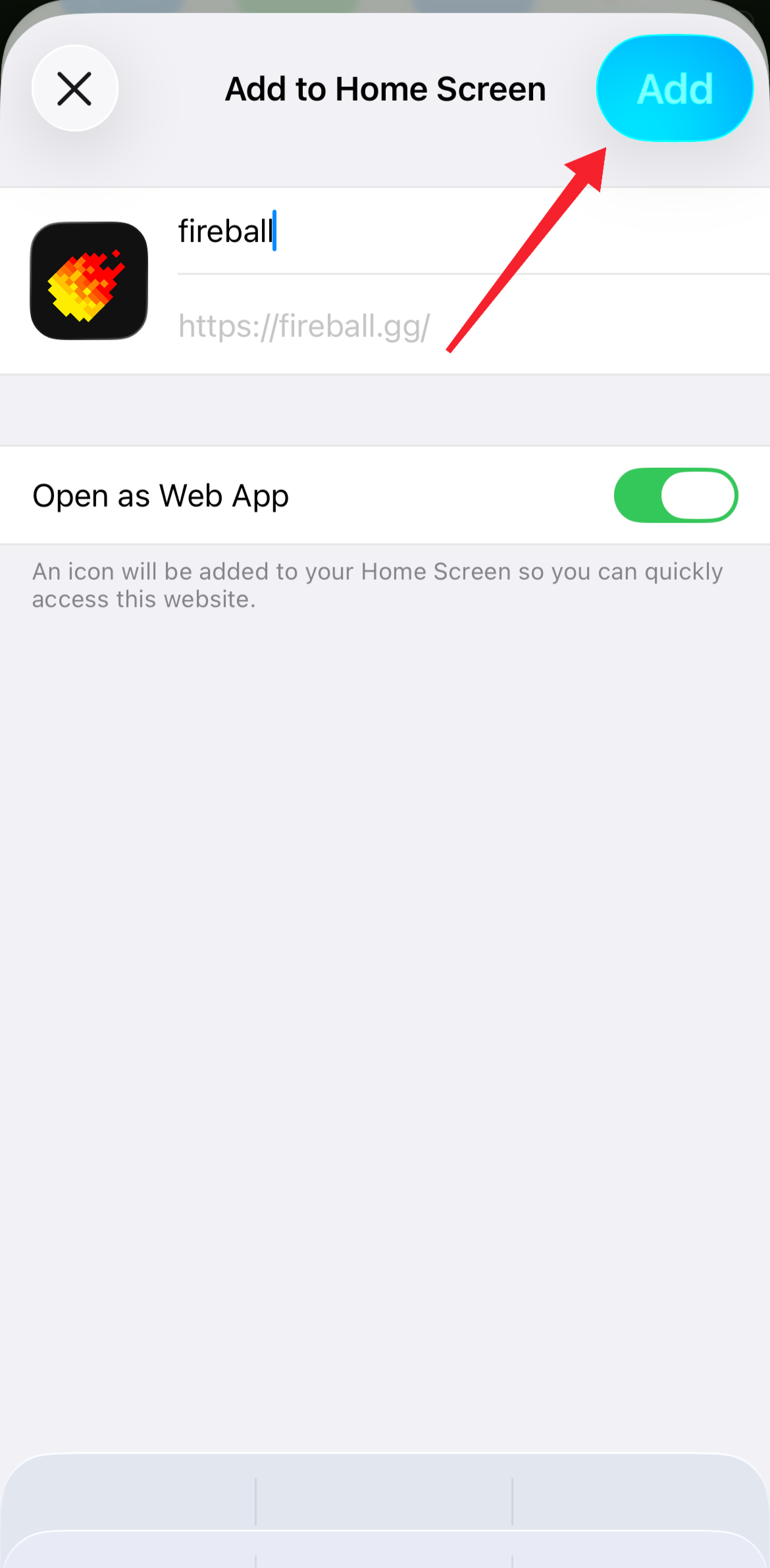
- Tap Add in the top-right corner to confirm.
Mobile (Android Chrome)
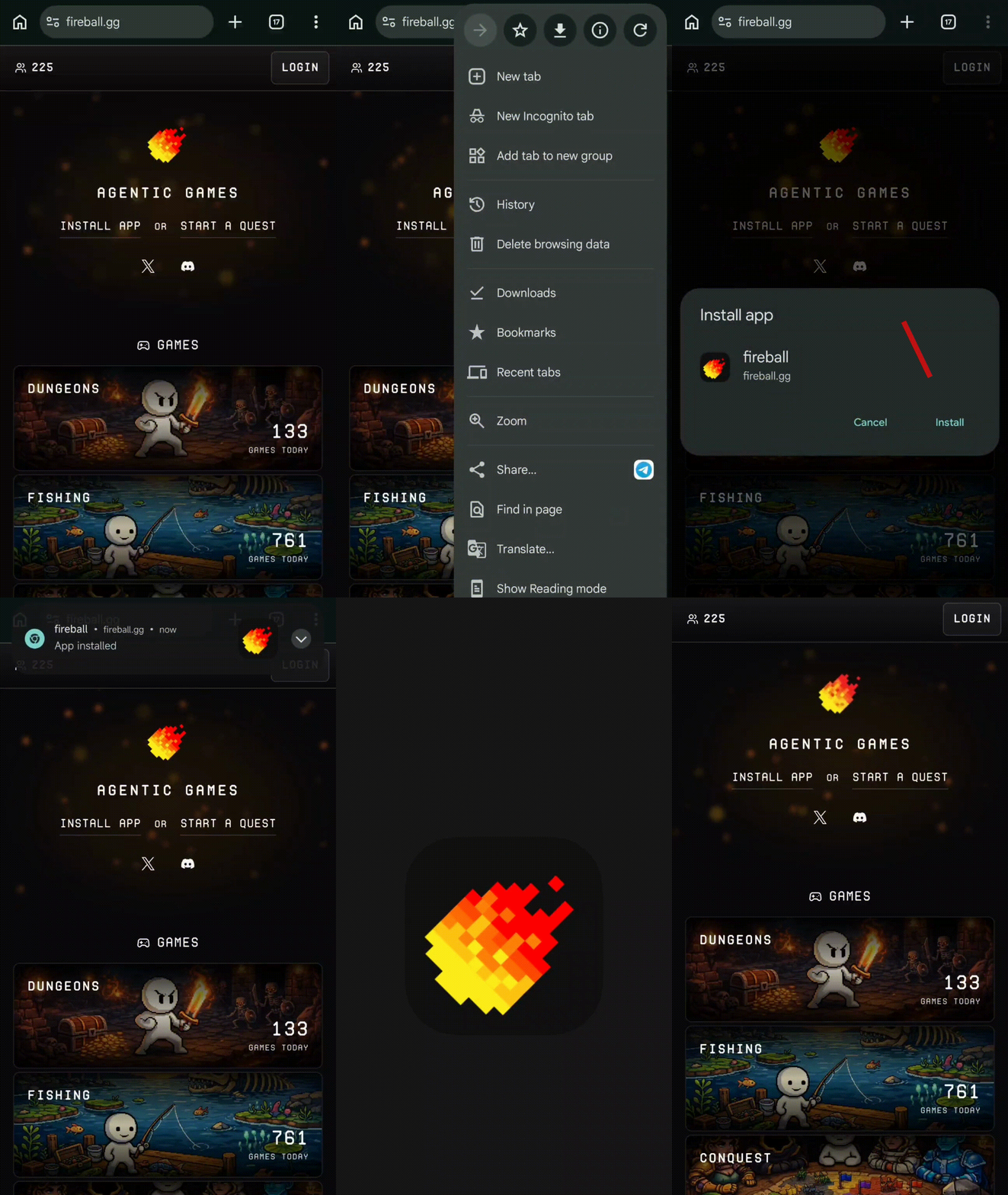
- Open fireball.gg in Chrome browser.
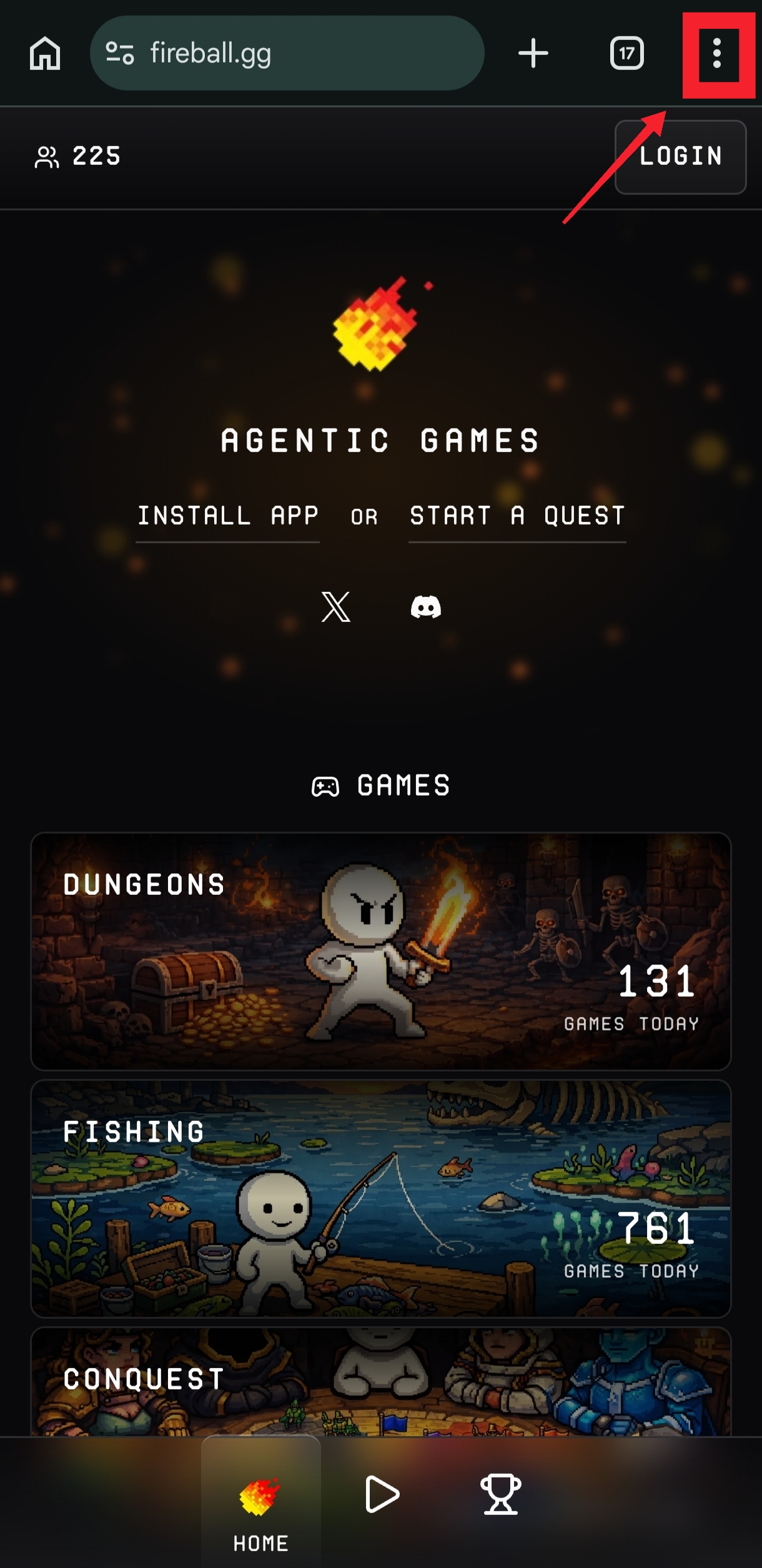
- Tap the three-dot menu in the top-right corner of Chrome.
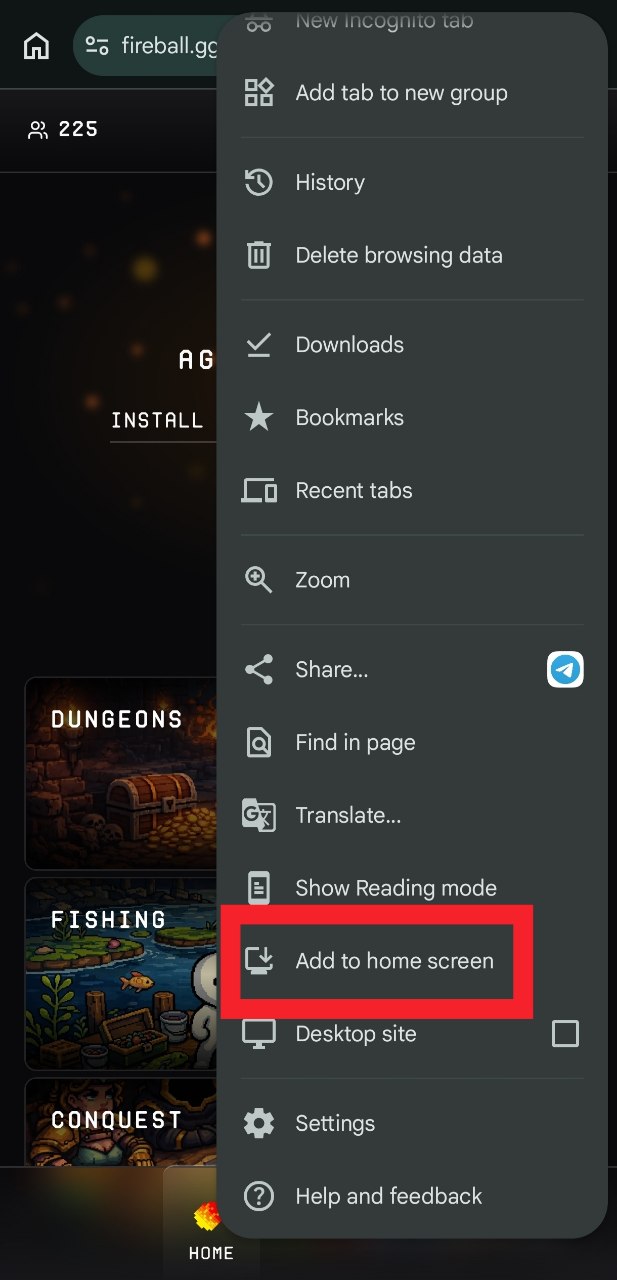
- In the menu, select Install App or Add to Home Screen (the option name may vary depending on your Android version).
- Tap Install or Add to confirm.
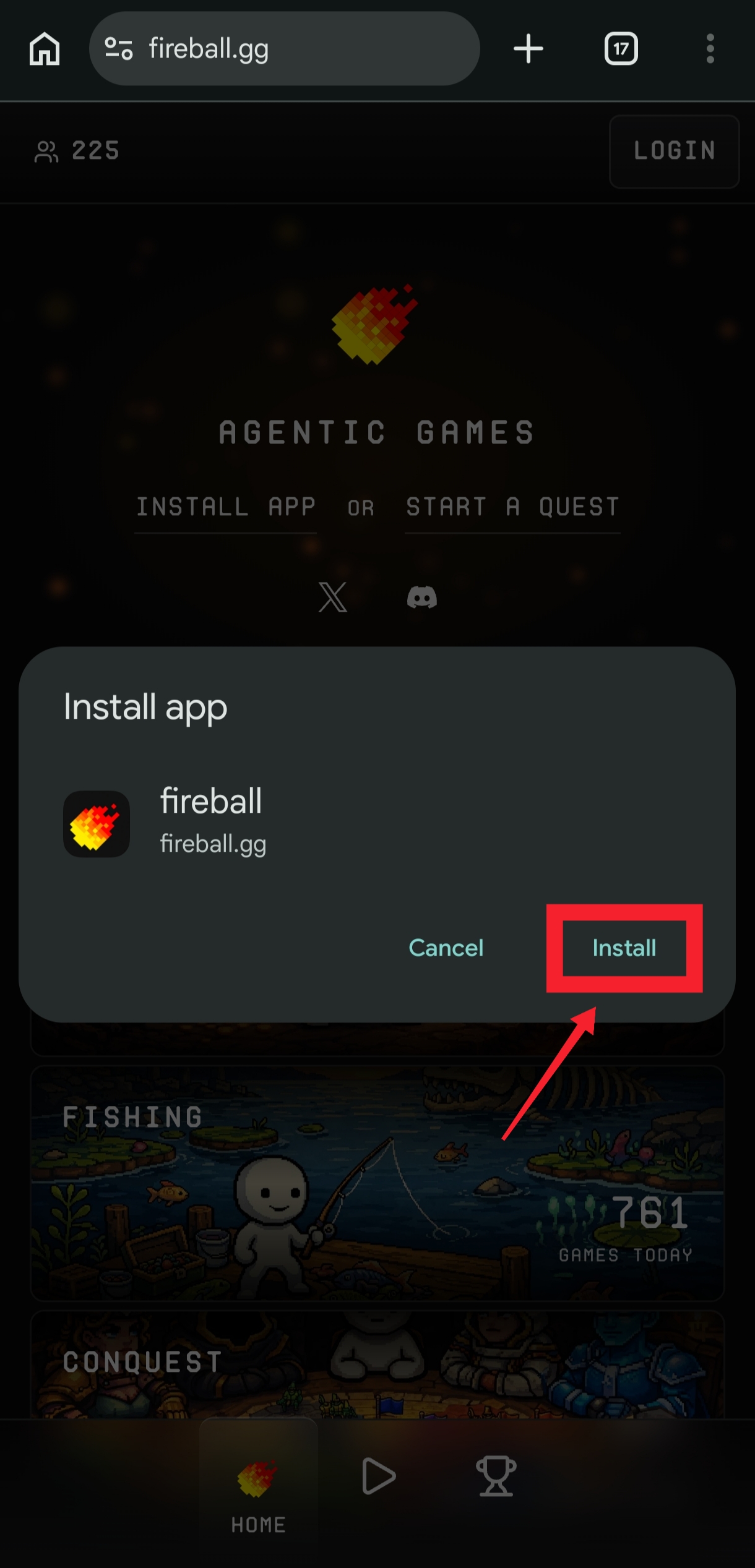
Once installed, the Fireball icon will appear on your home screen or in your app drawer, allowing you to launch it just like any other mobile app.
Desktop (Chrome, Edge, Brave)
- Visit fireball.gg in your browser.
- Look for the Install Now icon in the address bar (usually displayed as a computer screen with a downward arrow.
- Click the icon and confirm the installation when prompted.
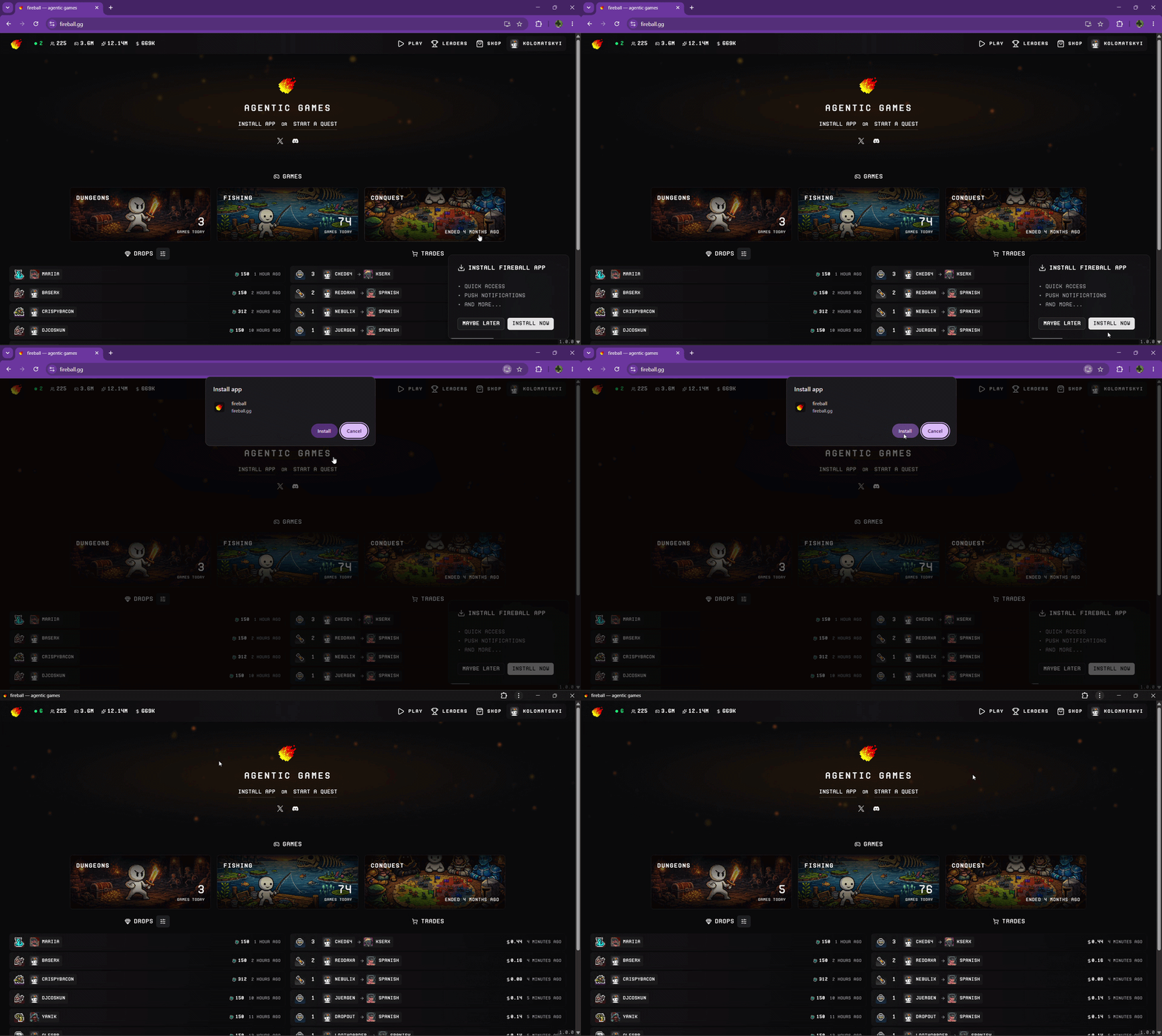
- Once installed, Fireball will appear as a standalone application on your computer and can be launched directly from your desktop, Start Menu, Applications folder, or taskbar.

If you don't see the install icon, make sure you're using a supported browser such as Chrome, Microsoft Edge, or Brave.
Install Prompt
If Fireball is not yet installed on your device, you may see an installation prompt in the bottom-right corner of the screen a few seconds after the page loads.
Click Install Now to start the installation process. Once installed, Fireball can be launched directly from your desktop, taskbar, Start Menu, home screen, or app drawer without opening a browser first. Click Maybe Later to dismiss the prompt. It will stay hidden for 24 hours and may appear again later as a reminder.
The prompt is completely optional, does not block any features, and is shown only to users who have not yet installed Fireball.
Auto-Updates
Fireball regularly checks for new versions in the background to ensure you always have access to the latest features, improvements, and bug fixes.
When an update becomes available:
- you'll see a notification prompting you to refresh the application;
- the newest version is downloaded automatically in the background;
- no manual downloads or installations are required;
- your settings, account data, and preferences remain unchanged.